Digitally Accessible Materials/Alternative Format Request
Some students registered with SAEO are approved for course materials in an accessible alternative format compatible with screen readers, braille displays, text-to-speech, or other assistive technologies. These items may include textbooks, articles, handouts, or other materials.
If you are a student approved for this accommodation and you would like to request access to materials in an alternative format, please submit a request through the student portal using the steps below. Please note that you will need to submit a new request for each semester’s materials.
If you have any questions regarding this process, please contact smithsonc@vcu.edu.
How to Request Alternative Format Materials
- Log into the Student Portal
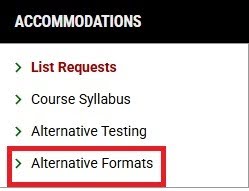
- On the left-hand side of the webpage select “Alternative Formats”
- Select the drop-down arrow beside “Update Preferences” then choose which format is preferred for your alternative text.
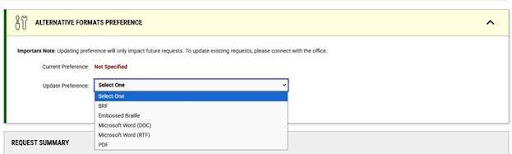
- Select “Update Preferences”

- Scroll to the top-left of the page and select, “Requests”

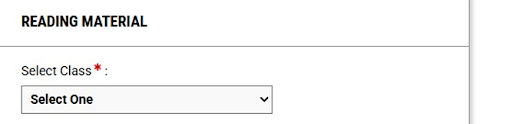
- Scroll down the page and you will begin completing the form titled “Reading Material”.
- Select the down arrow underneath “Select Class” and choose your class.
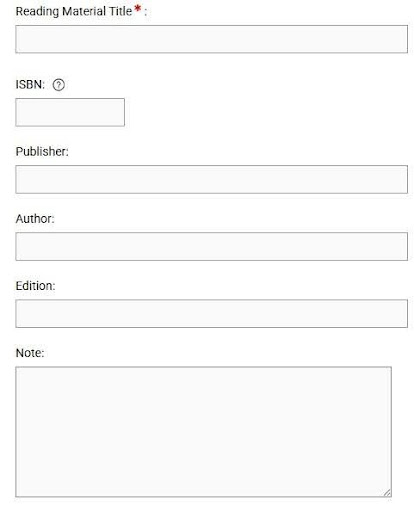
- Give a title for the book or class materials. If this is for a book you will then proceed and fill out the ISBN, Publisher, Author, Edition, and any additional notes. Please note these are required fields if you are filling out this form for a book in your class.
- Scroll to the bottom left hand side of the page and select, “Submit Request”.
- If this is for a book request, please proceed to “How to Upload a Receipt” and proceed to step 3 to upload your receipt. If this is for a formatted text provided by your instructor, please complete the following steps.
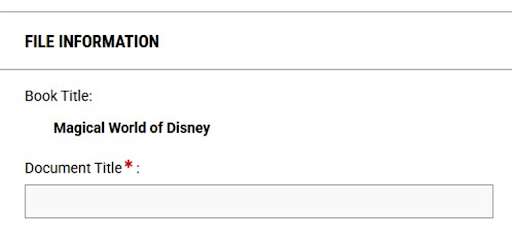
- Add the title of the course materials.
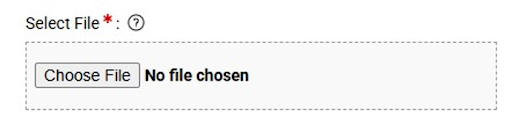
- Select “choose file” to upload your document.
- Add a due date for when this material is needed for your class. Please note that formatting takes time. We recommend that you submit materials in advance, and we cannot confirm that any text will be delivered by the date that you have selected. You can also add any notes regarding formatting needs for this text in the notes section.
How to Upload a Receipt
- Log into the Student Portal
- On the left-hand side of the webpage select “Alternative Formats”
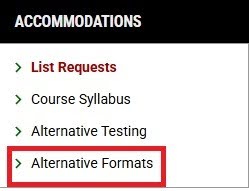
- Scroll to the top right of the page and select, “Upload Receipt".

- Scroll down the page and begin completing the form, "Receipt Detail”. Here you will choose a receipt to upload, select the course that the receipt is from, and add any notes regarding the receipt.
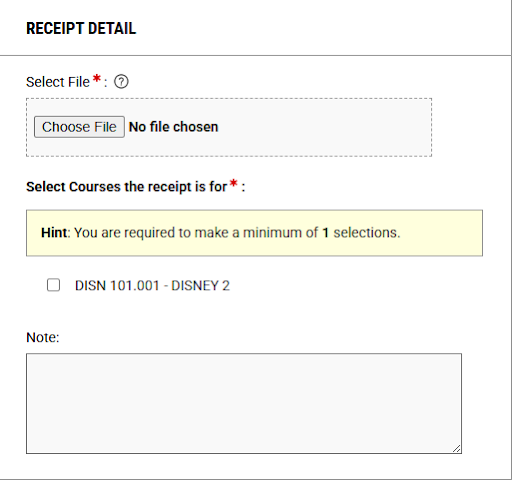
- Scroll down and bottom left-hand side select “Upload Receipt”.